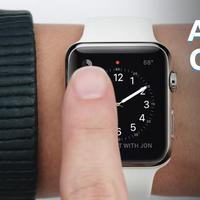
009: Apple Watch — Guided Tour: Welcome
Welcome to Apple Watch!
It's our most personal device yet because it's the first one you actually wear. It works seamlessly with your iPhone but it's a whole new kind of experience.
To make the best use of its size, it has some amazing new interactions and technologies. They make Apple Watch super easy to use when you're on the move. And since it's right there on your wrist, it's ideal for brief interactions. It lets you quickly do things you're used to doing on your phone but in a more convenient, less obtrusive way. It can even do other things that simply weren't possible with your phone like give you a discreet tap when you receive a notification or monitor your heart rate.
To tell you more, we've created a series of guided tours. In this one, we'll give you an introduction to Apple Watch. To activate your watch, you don't even have to touch it. Just raise your wrist and it wakes up. That's it. To turn off the display, simply lower your wrist.
Your experience with Apple Watch starts with the watch face. You can customize the design as well as add additional pieces of useful information like the weather, your calendar, or a snapshot of your physical activity. You can tap on any one of these to go to the corresponding app.
You can access other timely information from your watch face with two simple gestures: swiping up and swiping down. Swipe up to see glances which are bite size snippets of the content you check most often. Tapping on any glance opens the full app. Swipe down to see and act on your missed notifications.
To see all of your apps in one place, you press this, the digital crown. The digital crown is a revolutionary input device and as integral to Apple Watch as the click wheel was to iPod. Let's take a look at how it works. Scrolling with your finger on the screen covers up the information that you're trying to see. But when you rotate the digital crown, you can navigate fluidly and precisely without obstructing your view. And you can go as slowly or as quickly as you want. You can also use it to make fine adjustments such as setting a timer, adjusting your daily move goal and activity app, or customizing the design of a watch face.
And because pinching to zoom is impractical on a display this size, turning the digital crown lets you easily magnify content. You can also press and hold the digital crown to access Siri or you can simply say “Hey, Siri!” and use just your voice. “Hey, Siri, remind me to email Bob.”
Another important feature of Apple Watch is the pressure sensitive display. Too many buttons would clutter the screen so you can press firmly like this to access additional controls. This new technology is called Force Touch. In maps, it's how you search for a location. In messages, it brings up reply options. In workout, it's the way you end your session.
Apple Watch has only one other button here next to the digital crown. And it serves a really important purpose. Pressing it from anywhere takes you right to the people you like to connect with most. You can make a call, send a message, or use a brand new feature called Digital Touch to send a sketch or a tap and even share your heartbeat.
And that's your intro to Apple Watch. You're going to have a lot of fun using it especially now that you've seen how easy it is.